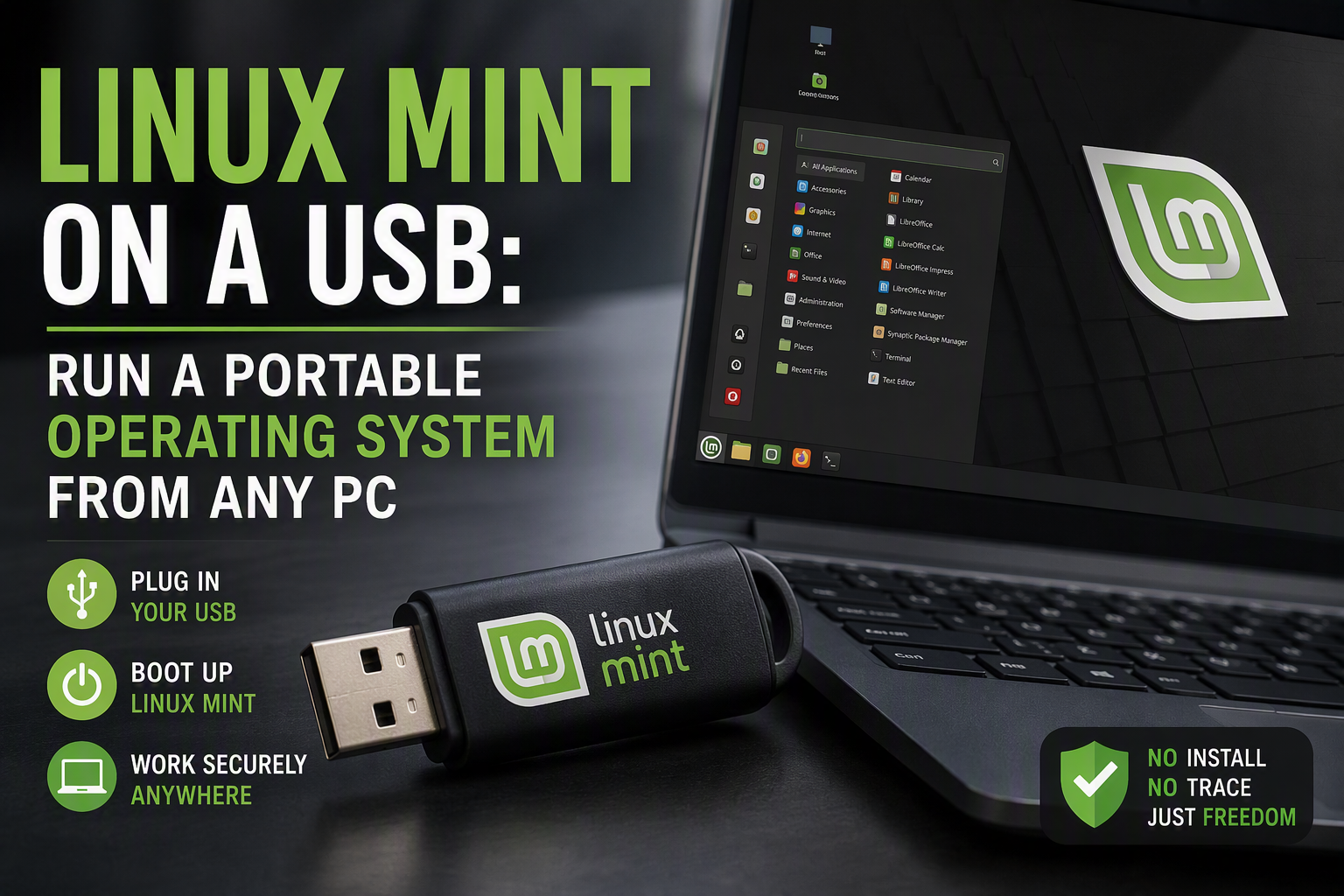
A portable Linux Mint USB drive lets you carry a full, working operating system in your pocket and boot it on almost any computer without touching the machine’s internal hard drive. It is one of the most useful tools we use at Mojoo Limited for diagnostics, data recovery, and giving older PCs a second life.
What is a portable Linux Mint USB?
Linux Mint is a free, user-friendly operating system based on Ubuntu. When installed to a USB stick as a “live” or persistent drive, it runs entirely from the USB, leaving the host computer’s Windows installation and files completely untouched. This makes it perfect for trying Linux, rescuing data from a machine that won’t boot, or working securely on a shared computer.
Why use one?
- Data recovery: boot into Mint to copy files off a PC that no longer starts Windows.
- Testing hardware: rule out software faults by running a clean OS from USB.
- Reviving old PCs: give a slow, ageing laptop a fast, modern, secure system.
- Privacy: work from a fresh environment that leaves no trace on the host machine.
How to create a Linux Mint USB
Download the Linux Mint ISO from the official linuxmint.com website. Then use a free tool such as balenaEtcher or Rufus to write the ISO to a USB stick of at least 8GB. Restart the computer, open the boot menu (usually F12, F10, or Esc during startup), and select the USB drive. Within a couple of minutes you
Live mode vs. persistent storage
There are two main ways to run a Linux Mint USB. In live mode, the system loads fresh every time you boot and forgets any changes when you shut down, which is perfect for one-off tasks like data recovery or testing hardware. A persistent USB, on the other hand, keeps your files, settings and installed programs between sessions, effectively turning the stick into a portable computer you can carry between machines. When you create the drive you can set aside a portion of the USB as a persistence file, so choose a larger, faster USB 3.0 stick if you plan to use it this way regularly.
Choosing the right USB drive
The quality of your USB drive makes a big difference to how usable your Linux Mint USB feels. We recommend a USB 3.0 (or faster) stick of at least 16GB from a reputable brand. Cheap or counterfeit drives are often slow and unreliable, which can make the desktop feel sluggish and, worse, risk losing data during a recovery job. If you intend to use persistence and install extra software, 32GB or more gives you comfortable headroom. A faster drive also shortens boot times noticeably, so it is worth the small extra cost.
Troubleshooting common boot problems
If your computer skips past the USB and boots straight into Windows, you usually need to change the boot order or use a one-time boot menu. Some modern machines also require you to disable Secure Boot or Fast Startup in the BIOS/UEFI settings before a Linux Mint USB will load. If the drive is not detected at all, try a different USB port (ideally one directly on the motherboard rather than a hub) and re-write the ISO in case the copy was corrupted. These steps solve the vast majority of problems, but if you get stuck our team is always happy to help.
Is Linux Mint right for you?
Linux Mint is one of the friendliest ways to try Linux because its desktop looks and behaves much like Windows, so most people feel at home within minutes. Running it from a USB is a risk-free way to see whether it suits you before committing to a full installation. It is especially handy for older laptops that struggle with modern Windows, for keeping a secure environment for online banking, or simply for learning a new skill. Because nothing is written to the host machine unless you choose to, you can experiment freely without any worry.
A closer look at Linux Mint
Before you build a Linux Mint USB, it helps to understand exactly what you are putting on that little stick. Linux Mint is a community-driven operating system built on top of Ubuntu, which in turn is built on Debian. That heritage matters because it means Mint benefits from one of the largest and best-tested software libraries in the Linux world, along with a huge base of documentation and community support. In plain terms, if something can run on Ubuntu, it will almost certainly run on Mint too.
What sets Mint apart is its focus on being approachable. The default Cinnamon desktop deliberately mirrors the familiar layout of Windows, with a start-style menu in the bottom left, a taskbar along the bottom, and a system tray on the right. People switching from Windows rarely need a tutorial to find their way around. Mint also ships with sensible defaults: a full office suite, a web browser, a media player, and the codecs needed to play most audio and video straight away. That means a Linux Mint USB is genuinely usable the moment it boots, with no lengthy setup required.
Mint comes in three desktop editions. Cinnamon is the flagship and the one most people should choose. MATE is a lighter option that suits slightly older hardware, and Xfce is the leanest of the three, designed for machines with very limited memory. When you are running from a USB stick, the lighter editions can feel noticeably snappier, so if you are reviving an ageing laptop it is worth considering MATE or Xfce for your Linux Mint USB.
System requirements and what you will need
One of the great strengths of Linux Mint is how modest its hardware demands are. A machine that crawls under a modern version of Windows can feel responsive again running Mint. To boot and use a Linux Mint USB comfortably, you will want a computer that meets a few basic requirements, though almost any PC or laptop made in the last fifteen years will qualify.
- At least 2 GB of RAM, although 4 GB or more gives a much smoother experience.
- A 64-bit processor, which covers virtually every machine built since around 2010.
- A USB port capable of booting, which every desktop and laptop of the era provides.
- A USB stick of at least 8 GB, or 16 GB and above if you want to store files and settings.
- A working second computer to download Mint and write it to the stick.
You will also need two pieces of software. The first is the Linux Mint ISO file, a single large download that contains the entire operating system. You can always get the latest version directly from the official linuxmint.com website, where you can choose your preferred edition and pick a nearby download mirror for faster speeds. The second is a USB writing tool such as balenaEtcher, Rufus, or the Startup Disk Creator built into Mint itself. These tools take the ISO file and copy it onto your stick in a way that a computer can boot from.
Step-by-step: building your Linux Mint USB
Creating a Linux Mint USB is far simpler than most people expect. The whole process usually takes under twenty minutes, most of which is spent waiting for downloads and copies to finish. Follow these five steps carefully and you will have a bootable stick ready to go.
1. Download the Linux Mint ISO
Head to the official Linux Mint website and choose the edition you want. For most people the Cinnamon 64-bit release is the right choice. Download the ISO file to a folder you can easily find, such as your Downloads folder. The file is around three gigabytes, so on a slow connection this is the step that takes the longest.
2. Verify the download (optional but wise)
The Mint project publishes checksums so you can confirm your download is complete and untampered. If you are comfortable using a terminal or a checksum tool, taking a minute to verify the file protects you against corrupted downloads that could cause boot failures later. If you are in a hurry you can skip this, but for anything mission-critical it is a habit worth keeping.
3. Write the ISO to your USB stick
Open your chosen writing tool, select the Mint ISO file, then select your USB stick as the target. Double-check that you have picked the correct drive, because this process erases everything already on the stick. Click write or flash and wait for the tool to finish. When it reports success, your Linux Mint USB is essentially ready.
4. Set your computer to boot from USB
Restart the computer you want to run Mint on and open its boot menu, usually by tapping a key such as F12, F10, Esc, or Del as it powers on. Choose your USB stick from the list. On some newer machines you may first need to disable Fast Boot or Secure Boot in the firmware settings. Once selected, the computer will start loading Linux Mint from the stick.
5. Boot into the live desktop
After a short loading screen you will arrive at the full Linux Mint desktop, running entirely from your USB stick. From here you can browse the web, open files, test your hardware, or click the installer icon if you decide to install Mint permanently. Nothing is written to the host computer unless you explicitly choose to, so you can explore with complete confidence.
Setting up persistence so your work is saved
By default a live Linux Mint USB forgets everything when you shut down. That is deliberate and often useful, but sometimes you want your files, bookmarks, and installed programs to survive a reboot. This is where persistence comes in. A persistent Linux Mint USB reserves part of the drive as a permanent storage area, so your changes are remembered each time you boot.
There are two common ways to achieve this. The simplest is to perform a genuine installation of Mint onto the USB stick itself, treating the stick exactly like an internal hard drive. This gives you a fully functional, portable system that updates and behaves like a normal installation. The trade-off is that it needs a larger, faster stick to feel responsive, and cheaper USB drives can make the experience sluggish. The alternative is a dedicated persistence partition created by certain writing tools, which layers your saved changes on top of the live system. Whichever route you choose, a 32 GB or larger high-speed stick will give you the room and the pace to work comfortably.
Everyday uses for a Linux Mint USB
Once you have a Linux Mint USB in your pocket, you will find yourself reaching for it in all sorts of situations. It is far more than a novelty; for many people and businesses it becomes an essential part of their toolkit. Here are some of the most valuable everyday uses we see at Mojoo Limited.
- Rescuing data from a dead PC. If Windows will not start, booting Mint from a stick often lets you reach the files on the internal drive and copy them somewhere safe.
- Testing suspect hardware. Because Mint runs independently of the installed system, it is a quick way to tell whether a fault is caused by software or by failing hardware.
- Secure browsing and banking. A fresh live session leaves no trace on the host machine, making it a clean environment for sensitive tasks on shared or public computers.
- Trying Linux risk-free. You get the full experience without altering your existing setup, so you can decide at your own pace whether to switch.
- Reviving old laptops. Machines that struggle with modern Windows can feel fast and useful again running a lightweight Mint edition.
Security and privacy benefits
A Linux Mint USB is a genuinely powerful privacy tool. Because a live session runs in memory and writes nothing to the host by default, every trace of your activity vanishes the moment you power down. There are no leftover browser histories, no cached passwords, and no temporary files left behind on the machine you borrowed. For anyone using a hotel business centre, a library computer, or a friend’s laptop, that is real peace of mind.
Linux as a platform is also far less targeted by everyday malware than Windows, and Mint is maintained by an active team that issues security updates promptly. Running from read-only live media adds another layer, because malware cannot easily make permanent changes to a system that resets on every boot. None of this makes you invincible, and sensible habits still matter, but a Linux Mint USB gives you a clean, disposable computing environment that is hard to beat for occasional secure tasks.
Keeping your Linux Mint USB up to date
If you have installed Mint properly onto a stick with persistence, keeping it current is exactly like maintaining a normal computer. The built-in Update Manager will notify you when new updates are available, and applying them is usually a matter of clicking a button and entering your password. It is worth running updates every few weeks so that your portable system stays secure and gains the latest fixes and features.
For a plain live stick without persistence, you cannot update the system itself, since it resets on every boot. Instead, when a new version of Mint is released you simply download the fresh ISO and re-write the stick, which takes only a few minutes. Many people keep two sticks: one live rescue stick that is always ready, and one persistent working stick for day-to-day portable use.
Tips for the best performance
The single biggest factor in how well a Linux Mint USB performs is the quality of the stick itself. Cheap, slow drives are the most common cause of a sluggish experience, so investing in a reputable, high-speed USB 3.0 or 3.1 drive pays off enormously. If your computer has a blue USB port, use it, because those are the faster USB 3 ports that make a real difference to load times.
Choosing a lighter desktop edition such as MATE or Xfce also helps on older hardware, freeing up memory for your actual work. If you are building a persistent system, allocating plenty of RAM to the machine and closing programs you are not using will keep things smooth. Finally, always shut the system down properly rather than pulling the stick out, which protects your saved data and keeps the drive healthy for the long term.
Frequently asked questions
Will a Linux Mint USB harm my Windows installation?
No. Running Mint from a USB stick leaves your existing Windows system and files completely untouched. Nothing is changed on the internal drive unless you deliberately choose to install Mint permanently, so you can experiment with total confidence.
How big does the USB stick need to be?
For a basic live stick, 8 GB is enough. If you want persistence so your files and settings are saved, choose 32 GB or larger, and pick a fast USB 3 drive for the best experience.
Can I use a Linux Mint USB to recover files from a broken laptop?
Very often, yes. If the internal drive is still physically healthy, booting Mint from a stick lets you browse the drive and copy your files to another device. If the drive has failed physically, you may need professional help, which is where our data recovery service can step in.
Is Linux Mint free?
Completely free. Linux Mint is open-source software, so there is no purchase cost and no licence fee. You are welcome to donate to the project to support its ongoing development, but you never have to pay to download or use it.
Need a hand?
If you would rather have it done for you, or you are trying to recover data from a PC that won’t boot, Mojoo Limited offers IT support, PC repair, and data recovery services in West Bromwich and across the West Midlands. Get in touch with our team and we will help you get up and running.
