Posted on Leave a comment

How to Service and Upgrade Your Laptop to Extend Its Life and Increase Performance

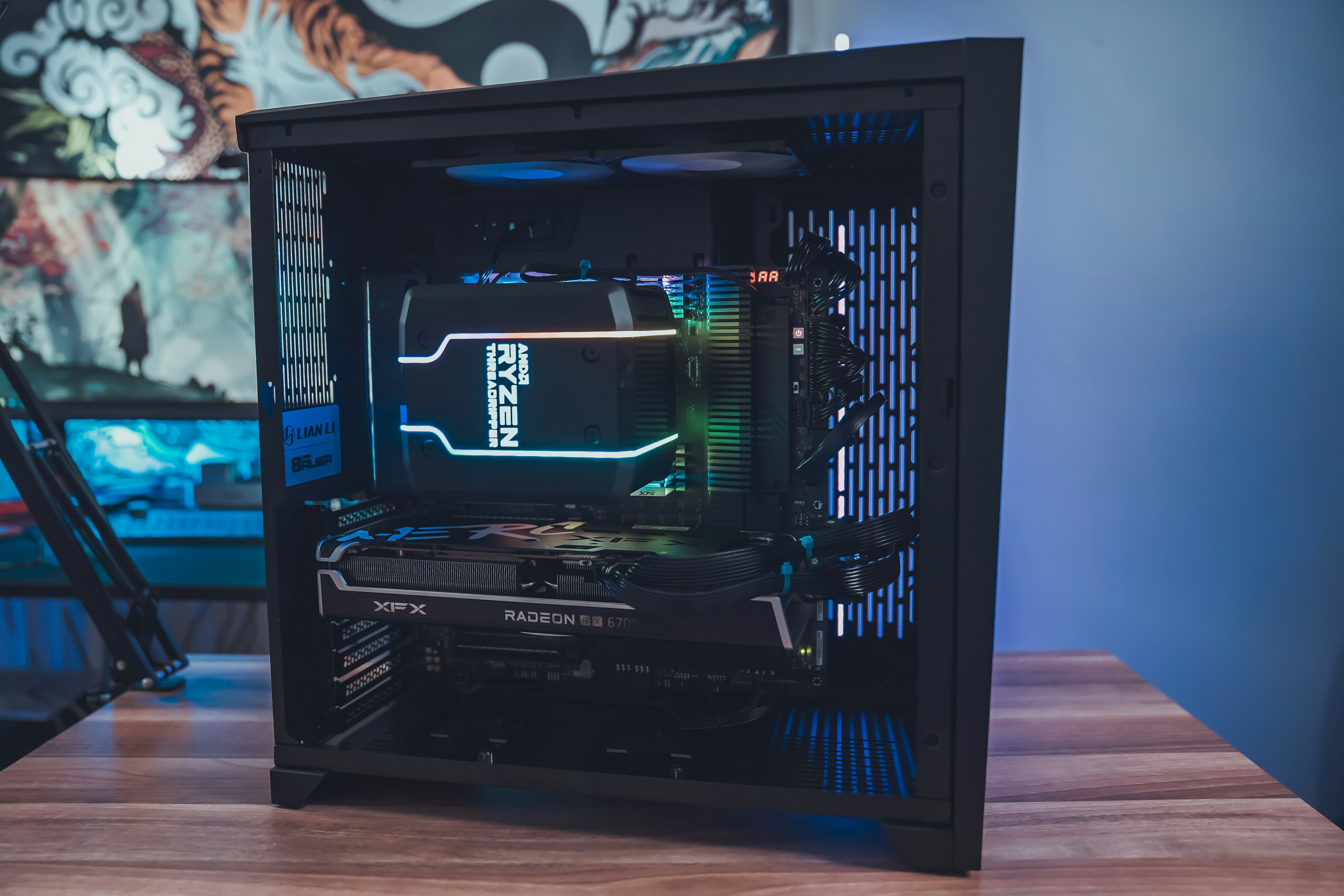
MacBook Pro on top of brown table

In today’s fast-paced world, laptops have become an essential tool for work, communication, and entertainment. However, over time, laptops can start to slow down and become less efficient. The good news is that there are several steps you can take to service and upgrade your laptop, which can significantly extend its lifespan and boost its performance. In this article, we will explore some of the key actions you can take to keep your laptop running smoothly.

Clean the Laptop

One of the simplest yet most effective ways to improve your laptop’s performance is by keeping it clean. Dust and dirt can accumulate in the vents and on the internal components, leading to overheating and reduced performance. Use a soft cloth or compressed air to clean the keyboard, screen, and vents regularly. Additionally, consider investing in a cooling pad to help keep your laptop cool during extended use.

Upgrade the RAM

If your laptop is running slow, upgrading the Random Access Memory (RAM) can make a significant difference. RAM is responsible for storing data that the laptop is currently using, and having more RAM allows for smoother multitasking and faster data processing. Check your laptop’s specifications to determine the maximum amount of RAM it can support, and consider adding more if possible. This relatively simple upgrade can provide a noticeable boost in performance.

Replace the Hard Drive with an SSD

Another effective way to improve your laptop’s performance is by replacing the traditional hard drive with a Solid-State Drive (SSD). SSDs are faster, more reliable, and more energy-efficient than traditional hard drives. They offer faster boot times, quicker file transfers, and overall snappier performance. While SSDs can be more expensive than traditional hard drives, the upgrade is well worth it for the performance gains.

Update Software and Drivers

Keeping your laptop’s software and drivers up to date is crucial for optimal performance. Regularly check for updates for your operating system, antivirus software, and other essential programs. Outdated software can lead to security vulnerabilities and performance issues. Most operating systems have an automatic update feature, but it’s a good practice to manually check for updates periodically.

Manage Startup Programs

When you start your laptop, numerous programs may automatically launch and run in the background. This can significantly slow down your laptop’s startup time and overall performance. Take the time to review the list of startup programs and disable any unnecessary ones. This will free up system resources and improve your laptop’s responsiveness.

Clear Unnecessary Files

Over time, your laptop can accumulate a significant amount of unnecessary files, such as temporary files, cache, and old downloads. These files can take up valuable storage space and slow down your laptop. Regularly clean up these files using the built-in disk cleanup tool or a third-party software. This will not only free up space but also improve your laptop’s performance.

Upgrade the Operating System

Consider upgrading your laptop’s operating system to the latest version if your hardware supports it. Newer operating systems often come with performance improvements, enhanced security features, and better compatibility with modern software. However, before upgrading, ensure that your laptop meets the minimum system requirements for the new operating system.

Keep Your Laptop Cool

Overheating can have a detrimental effect on your laptop’s performance and lifespan. Ensure that your laptop has proper ventilation and is not placed on soft surfaces that can block the vents. Consider using a laptop cooling pad or an external fan to help dissipate heat. Additionally, avoid using your laptop in extreme temperature conditions.

Regularly Backup Your Data

Lastly, always remember to back up your important data regularly. Hard drives can fail unexpectedly, and accidents can happen. By backing up your data, you can protect yourself from data loss and ensure that your laptop can be easily restored if any issues arise.

By following these tips, you can service and upgrade your laptop to extend its life and increase its performance. Remember to perform these actions regularly and consult with a professional if you are unsure about any specific upgrades or maintenance tasks. With proper care and attention, your laptop can continue to serve you well for years to come.

Contact Mojoo Ltd on 07958468173 to get help with any or all of the suggestions in the article

Posted on Leave a comment

Saving Your Windows 10 and Older PC from the Scrap Heap in 2025 with Chrome OS or Linux

a woman sitting on a couch talking on a cell phone

As the end of support for Windows 10 and older PC operating systems approaches in 2025, it’s important to explore alternative options to keep your computer running smoothly. Two popular alternatives are Chrome OS and Linux, both of which can breathe new life into your aging machine.

1. Chrome OS

Chrome OS, developed by Google, is a lightweight operating system designed for speed and simplicity. It is based on the Google Chrome web browser and primarily focuses on web applications and cloud storage.

To install Chrome OS on your PC, you can use a tool called CloudReady. It allows you to transform your old computer into a Chromebook-like device. CloudReady is easy to install and provides regular updates, ensuring your system stays secure.

2. Linux

Linux is a versatile open-source operating system that offers a wide range of distributions to choose from. Some popular Linux distributions include Ubuntu, Fedora, and Linux Mint. Linux provides a customizable and secure environment, making it an excellent choice for older PCs.

To install Linux on your PC, you’ll need to download the distribution of your choice and create a bootable USB drive. Most Linux distributions offer user-friendly installation processes, guiding you through the setup.

Benefits of Chrome OS and Linux

Both Chrome OS and Linux offer several advantages for older PCs:

  • Improved performance: These lightweight operating systems require fewer system resources, allowing your old PC to run faster and more efficiently.
  • Enhanced security: Chrome OS and Linux provide regular updates and have built-in security features, keeping your system protected against vulnerabilities.
  • Extended software support: With Chrome OS and Linux, you can access a wide range of software applications, ensuring compatibility and functionality for years to come.

By choosing either Chrome OS or Linux, you can extend the lifespan of your Windows 10 or older PC, avoiding the need to invest in new hardware. With their user-friendly interfaces and ongoing support, these operating systems offer a cost-effective solution to keep your computer running smoothly even after the end of Windows support in 2025.

Contact Mojoo Ltd for help with installation, support and training, remember Chrome OS and Linux are totally free and are a great alternative to Microsoft Windows

Posted on Leave a comment

The Most Common Computer Problems and How to Fix Them

woman in black long sleeve shirt covering her face with her hands

Introduction

Computers have become an integral part of our lives, and it can be frustrating when they encounter problems. From slow performance to unexpected crashes, computer issues can disrupt our work and cause unnecessary stress. In this blog post, we will discuss the most common computer problems and provide simple solutions to fix them.

1. Slow Performance

Is your computer running slower than usual? Slow performance is a common problem that can be caused by various factors. One of the main reasons is insufficient memory or storage space. To fix this, you can try deleting unnecessary files and programs, running a disk cleanup, or adding more RAM to your computer.

Another possible cause of slow performance is malware or viruses. Running a full system scan using a reliable antivirus software can help identify and remove any malicious programs that may be affecting your computer’s speed.

2. Blue Screen of Death (BSOD)

Encountering the dreaded Blue Screen of Death can be alarming, but it is a common problem that can usually be resolved. The BSOD occurs when your computer encounters a critical error. To fix this, restart your computer and enter Safe Mode. From there, you can try updating your device drivers, uninstalling recently installed software or hardware, or performing a system restore to a previous point in time.

3. Internet Connectivity Issues

Having trouble connecting to the internet or experiencing a slow internet connection can be frustrating, especially when you rely on it for work or entertainment. Start by checking if your router or modem is properly connected and restart them if necessary. You can also try resetting your network settings or updating your network drivers.

If the problem persists, contact your internet service provider (ISP) to check for any network outages or issues in your area. They may be able to provide further assistance or troubleshoot the problem remotely.

4. Unresponsive Programs

Have you ever encountered a frozen or unresponsive program on your computer? This can happen due to various reasons, such as insufficient system resources or a software glitch. To fix this, try closing the unresponsive program using the Task Manager (Ctrl + Alt + Delete) or Force Quit (Command + Option + Esc) on a Mac.

If the problem persists, you can try updating the program to the latest version or reinstalling it. It’s also a good idea to regularly update your operating system and keep all your software up to date to prevent compatibility issues.

5. Noisy Computer Fan

Is your computer’s fan making loud or unusual noises? This can be a sign of overheating or a faulty fan. Overheating can cause your computer to slow down or even shut down unexpectedly. To fix this, make sure your computer is placed on a flat surface with proper ventilation.

You can also clean the dust and debris from your computer’s fan using compressed air. If the noise persists, it may be time to replace the fan or seek professional help to prevent any further damage to your computer.

Conclusion

Computer problems are inevitable, but with the right knowledge and troubleshooting steps, many issues can be resolved without the need for professional assistance. By following the solutions provided in this blog post, you can tackle some of the most common computer problems and get your computer running smoothly again.

Remember to regularly update your software, run antivirus scans, and practice good computer maintenance to prevent future problems. If you encounter more complex issues or are unsure about how to proceed, it’s always best to seek professional help to avoid any potential damage to your computer.

Posted on Leave a comment

How to Choose the Right Computer for Your Needs

a couple of women sitting on top of a wooden floor

Introduction

When it comes to choosing a computer, the options can be overwhelming. With so many brands, models, and specifications to consider, it’s important to know what you need before making a decision. Whether you’re a student, a professional, or a casual user, this guide will help you navigate through the process of selecting the right computer for your needs.

1. Determine Your Needs

The first step in choosing the right computer is to determine your needs. Think about how you plan to use the computer and what tasks you’ll be performing on a regular basis. Are you a gamer, a graphic designer, or a writer? Do you need a computer for work, school, or entertainment? Understanding your needs will help you narrow down your options.

2. Consider the Operating System

The operating system (OS) is the software that manages the computer’s hardware and software resources. The two most popular operating systems are Windows and macOS. Windows is more widely used and offers a wider range of software compatibility, while macOS is known for its user-friendly interface and seamless integration with other Apple devices. Consider your familiarity with the operating system and the software you’ll be using when choosing your computer.

3. Choose the Right Form Factor

Computers come in various form factors, including desktops, laptops, and tablets. Desktop computers offer more power and flexibility, but they are less portable. Laptops are portable and convenient, but they may have limited upgrade options. Tablets are lightweight and compact, but they may not have the processing power required for certain tasks. Consider your mobility needs and the tasks you’ll be performing when selecting the form factor.

4. Look at the Specifications

The specifications of a computer determine its performance capabilities. Some key specifications to consider include:

  • Processor: Determines the speed and efficiency of the computer. Look for the latest generation processors for better performance.
  • RAM: Determines the multitasking capabilities of the computer. Aim for at least 8GB of RAM for smooth performance.
  • Storage: Determines the amount of data you can store on the computer. Choose between traditional hard drives or faster solid-state drives (SSDs).
  • Graphics: Determines the visual performance of the computer, especially for gaming or graphic-intensive tasks. Consider a dedicated graphics card for better performance.
  • Battery Life: Important for laptops and tablets. Look for a longer battery life if you’ll be using the computer on the go.

5. Set a Budget

Computers can range in price from a few hundred dollars to several thousand dollars. Set a budget based on your needs and prioritize the features that are most important to you. Keep in mind that investing in a higher-quality computer may save you money in the long run by offering better performance and durability.

6. Read Reviews and Compare Options

Before making a final decision, read reviews and compare different options. Look for reputable sources that provide unbiased opinions and consider the experiences of other users. Pay attention to the pros and cons of each computer and how they align with your needs.

7. Consider After-Sales Support

Finally, consider the after-sales support offered by the manufacturer. Check the warranty period, customer service options, and repair policies. A reliable after-sales support system can provide peace of mind and ensure that any issues with your computer will be resolved promptly.

Conclusion

Choosing the right computer is a crucial decision that can greatly impact your productivity and overall user experience. By determining your needs, considering the operating system, choosing the right form factor, looking at the specifications, setting a budget, reading reviews, and considering after-sales support, you’ll be able to make an informed decision and find the perfect computer for your needs.